Getting Started with KDCompute
About KDCompute
The KDCompute application provides any type of analysis of data stored KDDart which is accessed via mature API referred to as the Data Access Layer. KDCompute executes any analytical procedure, including basic breeding program calculations and mixed model data analysis (Standard Trial Analysis (METAR)).
Processing pipelines cater for the analysis of very large datasets, in the order of many millions of records. These operations occur on the ‘server’ which is remote from the analyst’s workstation. This causes the least inconvenience to the user, especially with long running processes.
For the needs of a small breeding program, the role of ‘server’ can easily be performed on a laptop computer storing a complete KDDart system.
KDCompute is able to manage both simpler breeding applications along with extended analytics capabilities. Complex pipelines have been implemented for GWAS and Genomic Selection applications that include selectable algorithms for imputation, model building and visualisation.
Key to solid analysis is the stable KDDart data platform managed by the API which ensures data integrity and that analysis is conducted directly on current, central and reliable data.
This help is intended to provide an introduction to using the KDCompute platform. Any algorithms shown are for demonstration purposes to illustrate how an ‘Analyst User’ can operate the software. Any specific help for an algorithm should available within the algorithm instructions.
Login and Groups
In your web browser, navigate to your KDDart installation to display the login window as illustrated.
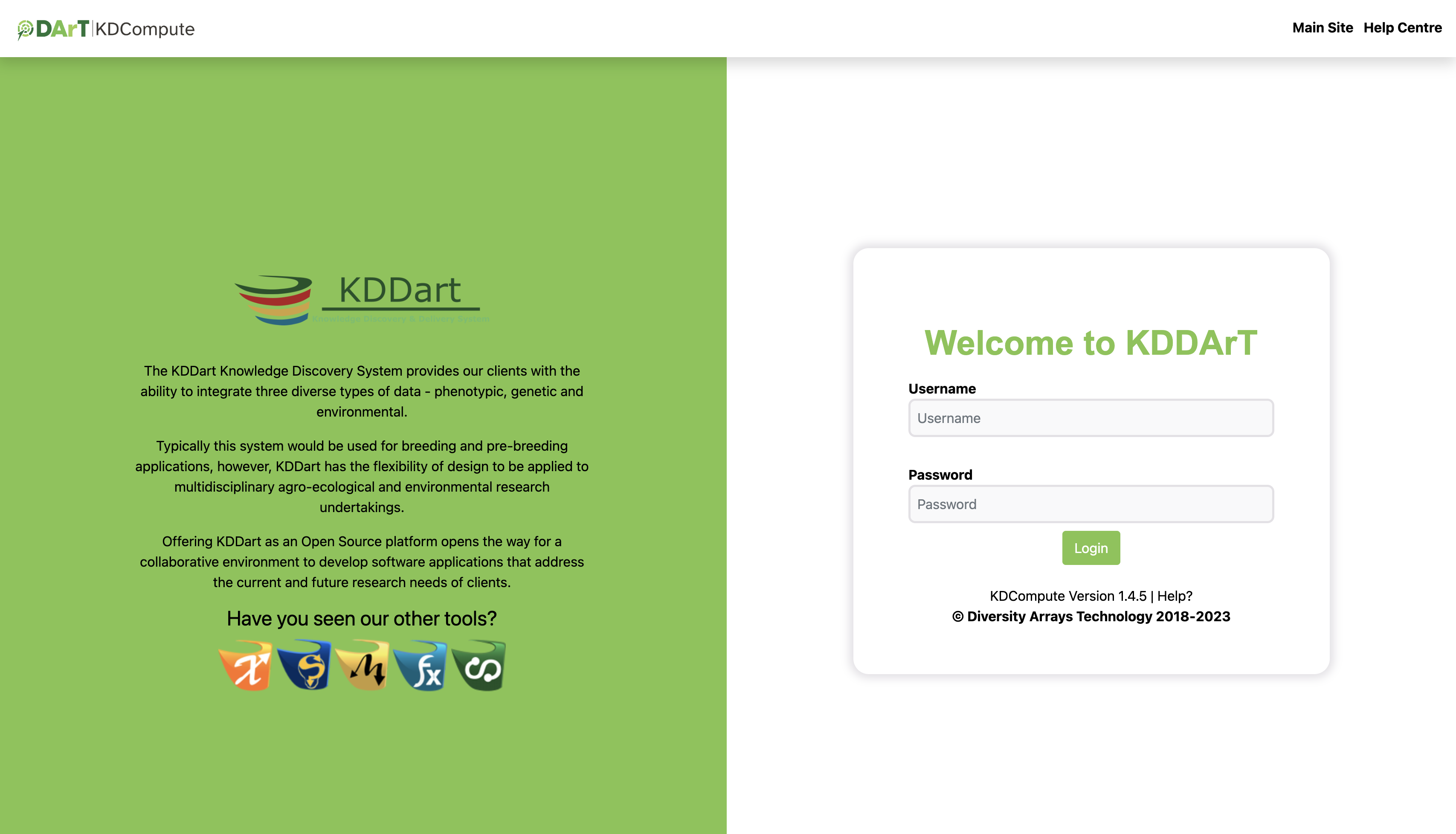
To commence using KDCompute, you need a valid KDDart userid and password to login/authenticate to the database.
Groups
Note
In the KDDart environment, a ‘Group’ determines record access. A user’s ability to read, update or add records is determined by the user’s group setting at the time KDCompute or the algorithm executes.
Once logged in into KDCompute, the following Switch Group window will display if the user belongs to multiple groups:
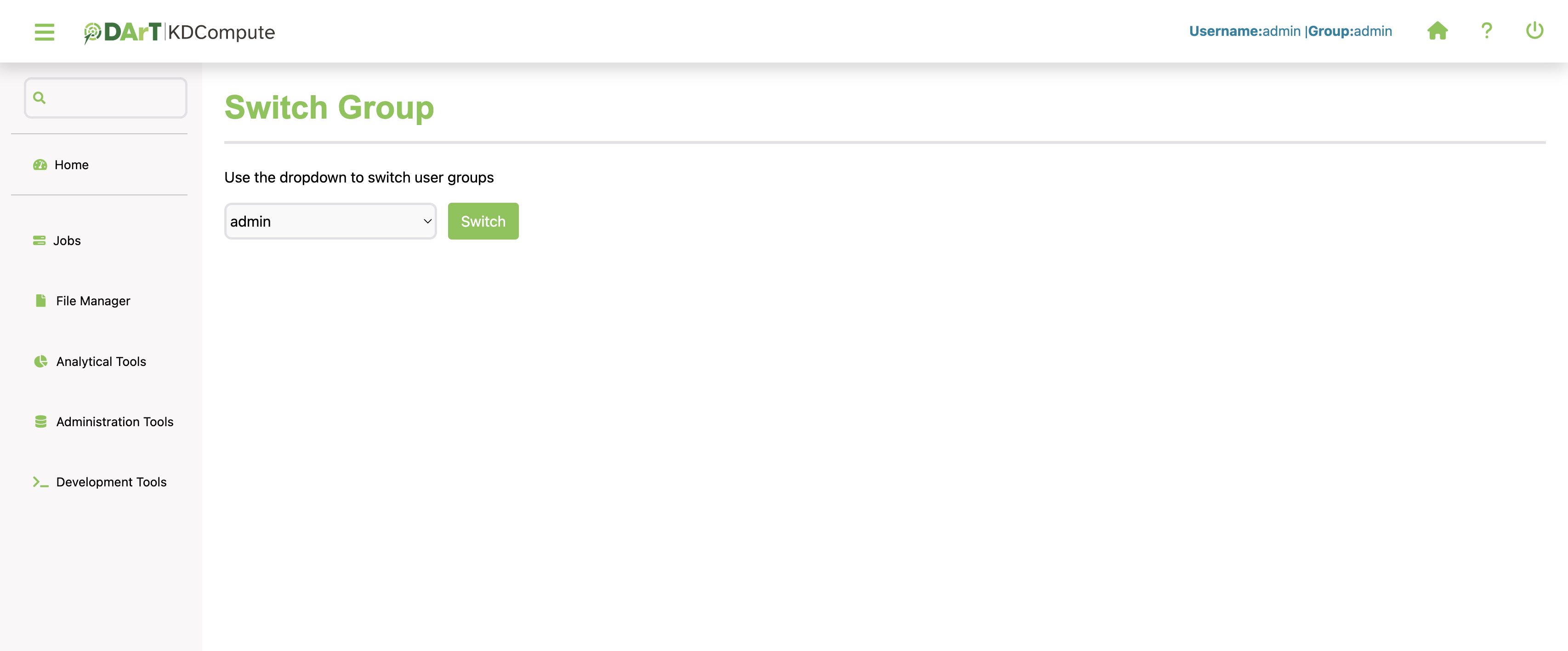
Select a group to use for the session. If the user is assigned to a single group, KDCompute will automatically set the group without prompting. A KDDart user with multiple groups can seamlessly switch between groups without the need to log out of KDCompute.
User will find the top navigation bar displaying the current userid and group, as shown in the following illustration:

Logout
The logout button is located in the top right corner of the screen within the top navigation bar as shown below:

Note
Logging out from KDCompute will not disrupt any jobs you have running or scheduled.
Sidebar
The sidebar presents the following menu options:
Option |
Description |
|---|---|
Home |
Interface that displays server information, list of jobs in queue and customisable modules |
Jobs |
Display and download the list of job details |
File Manager |
Navigate and manage the files and directories on the web server |
Analytical Tools |
Select and execute algorithms |
Administration Tools |
Deploy plugins, view lists of deployed plugins/users and user additions |
Development Tools |
Assist developers in creating or maintaining algorithms |
Search Bar
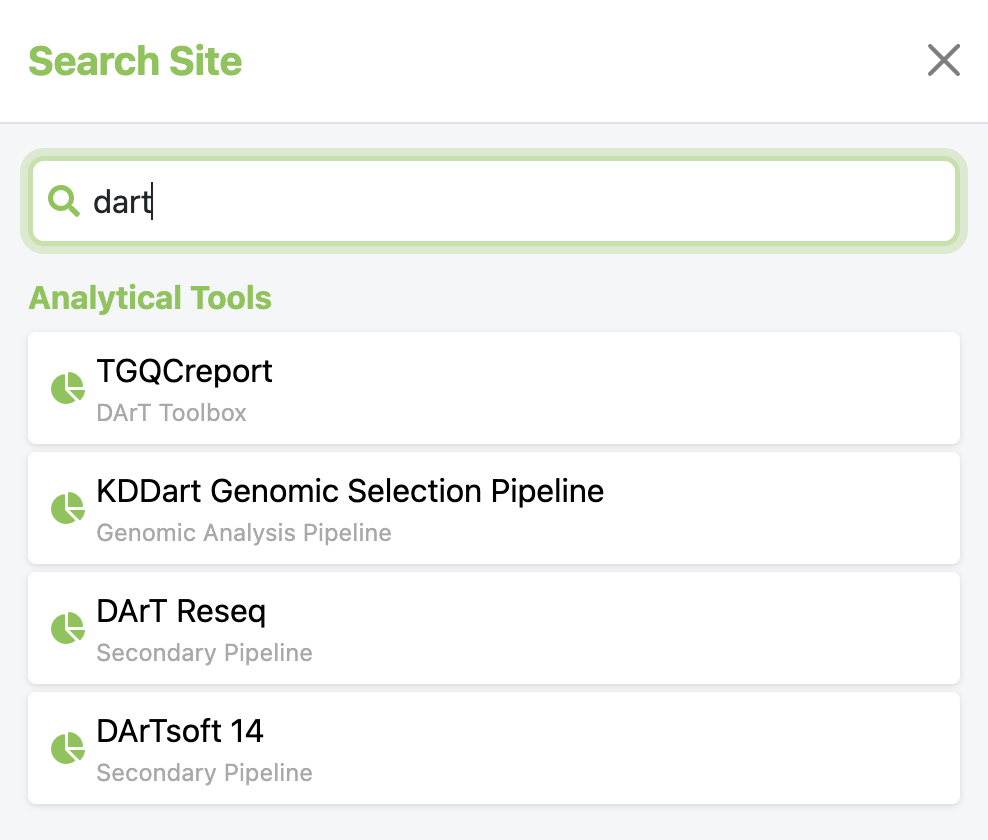
The search bar positioned at the top of the sidebar offers users an efficient way to navigate to their desired destination by providing quick access to the relevant contents.
User just need to input the keyword, click on the prompt, and they will be redirected to the page.
Home
The dashboard provides an overview of key elements including server information, the current list of jobs in queue and customisable modules.
Users are able to personalise the displayed content based on their preferences and interests so it aligns with the specific needs and focus areas.
An example shown below:
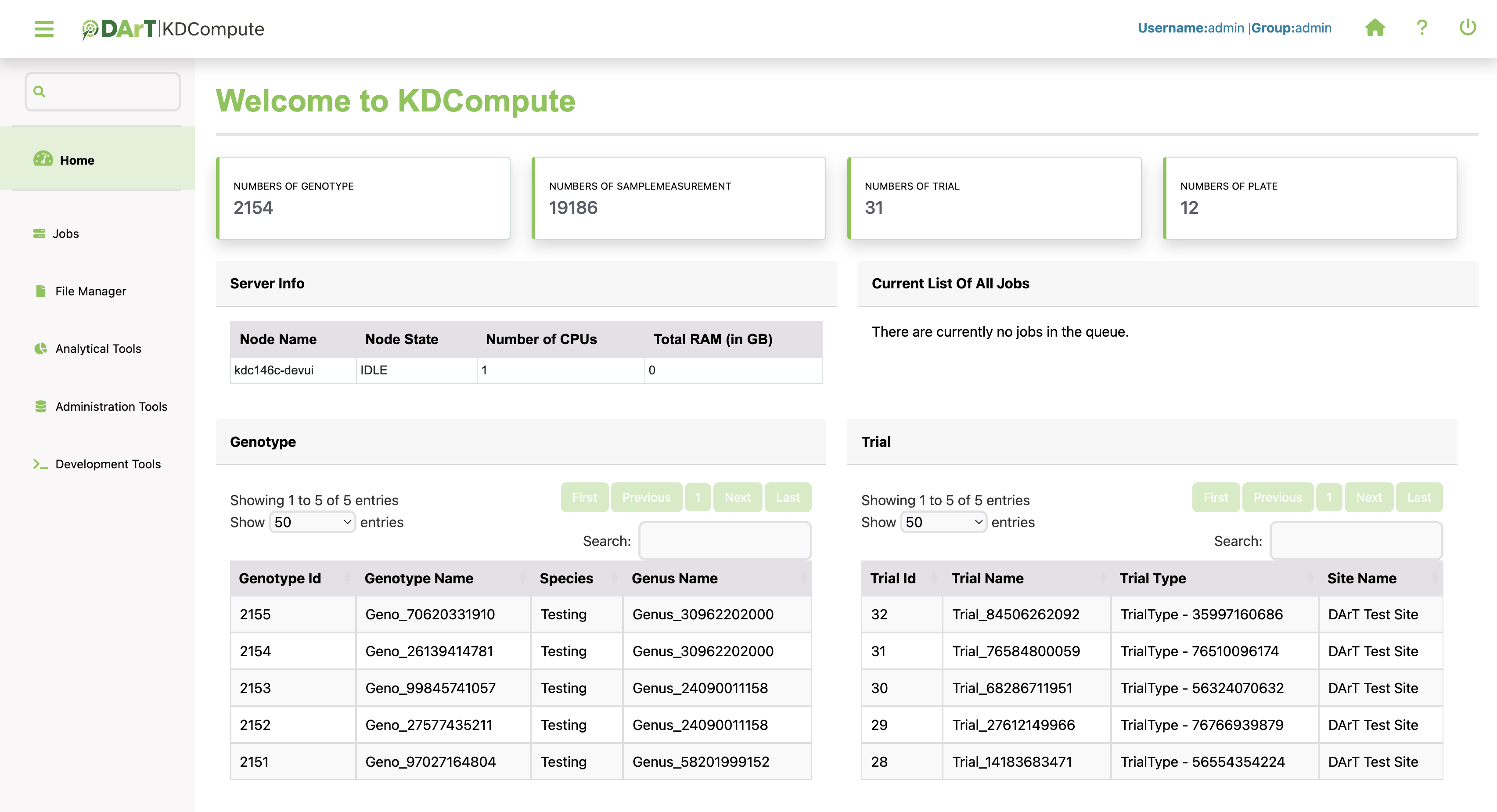
The server info shows a few details including the node name, the server’s current state, the number of CPU’s allocated and the amount of physical memory on the server.
Current list of all jobs displays tasks from the user currently active on the Queueing Server. Note: The ‘Running Time’ not necessarily a true representation of the actual time.
Jobs
The job list presents details of executed, running, or scheduled jobs for the current user.
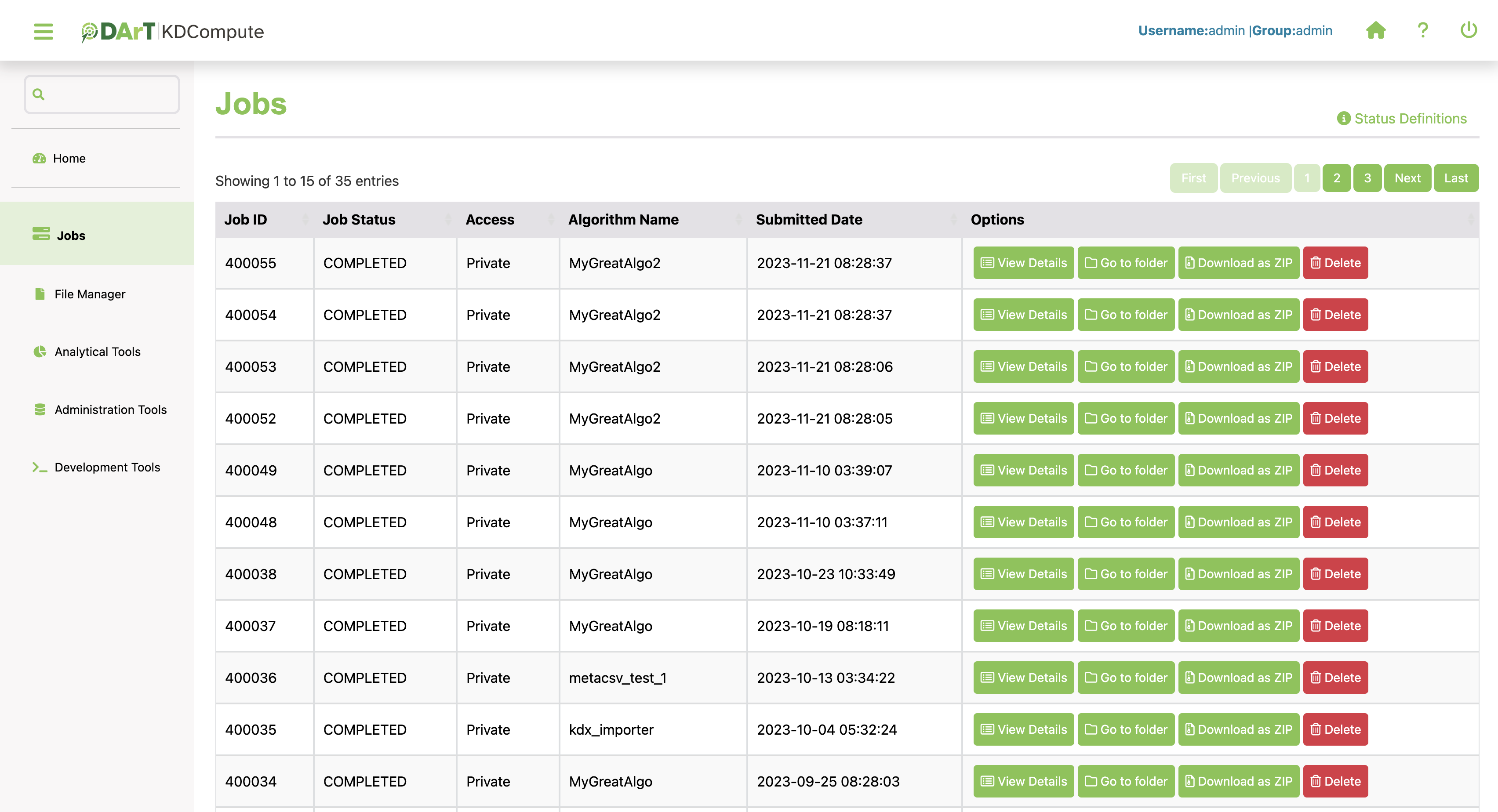
In order to manage jobs effectively, a range of actions is available. The following table outlines their functionalities and use cases:
Option |
Description |
|---|---|
View Details |
Show details of a specific job’s information. This includes information such as algorithm name, algorithm version and submitted job date. |
Go to folder |
To view and download the output of specific job. |
Download as ZIP |
Package and download selected folder in the compressed ZIP format. It is recommended to use the ‘Download as ZIP’ option especially when handling large data files. Note: A timeout will be triggered if the zip process exceeds 30 minutes, which may happen with exceptionally large files. |
Delete |
Remove the job from the list. |
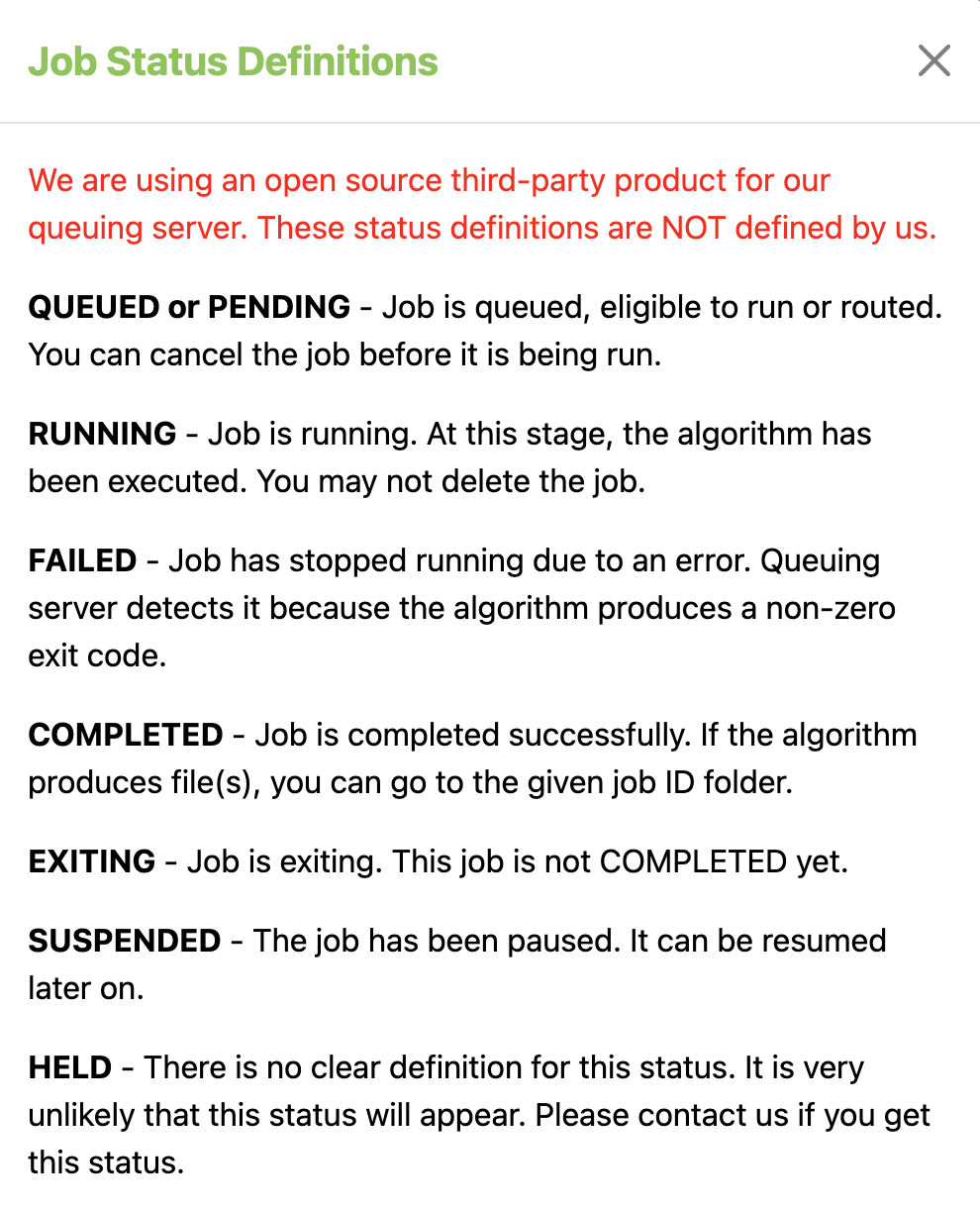
Job Status Definitions
The Job Status Definitions button can be found in the top right corner of the job page. This provides a static presentation of definitions for the different job statuses that the Queueing Server can indicate.
Job Folders and Contents
This represents the information shown in the prompt window upon selecting ‘Go To Folder’.
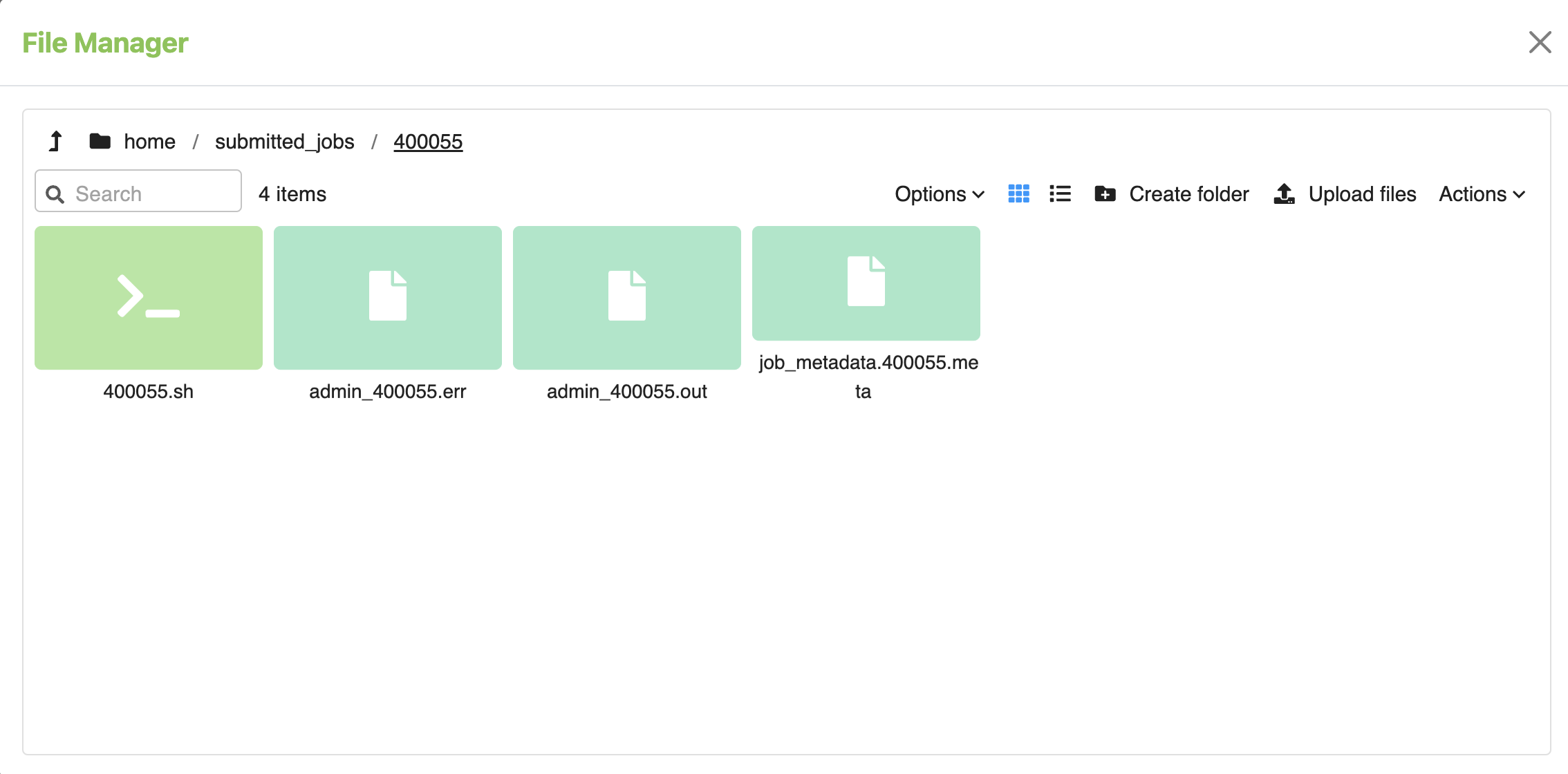
The files displayed in the illustration above represents the outcome of the job execution. In this example, these files include:
File |
Description |
|---|---|
400055.sh |
A bash script used by the Query Server to execute the algorithm. |
admin_400055.err |
A standard error file that can assist in debugging if error occurred. |
admin_400055.out |
A standard output file where the algorithm’s standard output will be presented if it is produced. |
job_metadata.400055.meta |
? |
File Manager
The File manager provides operations to manage user files on the webserver. The webserver is the computer server where the KDCompute application is hosted (i.e. lives) and performs the algorithms by users. Any files, input or output, required by an algorithm must be located on the webserver to allow the algorithm to operate.
The following illustration provides a view of the File Manager:
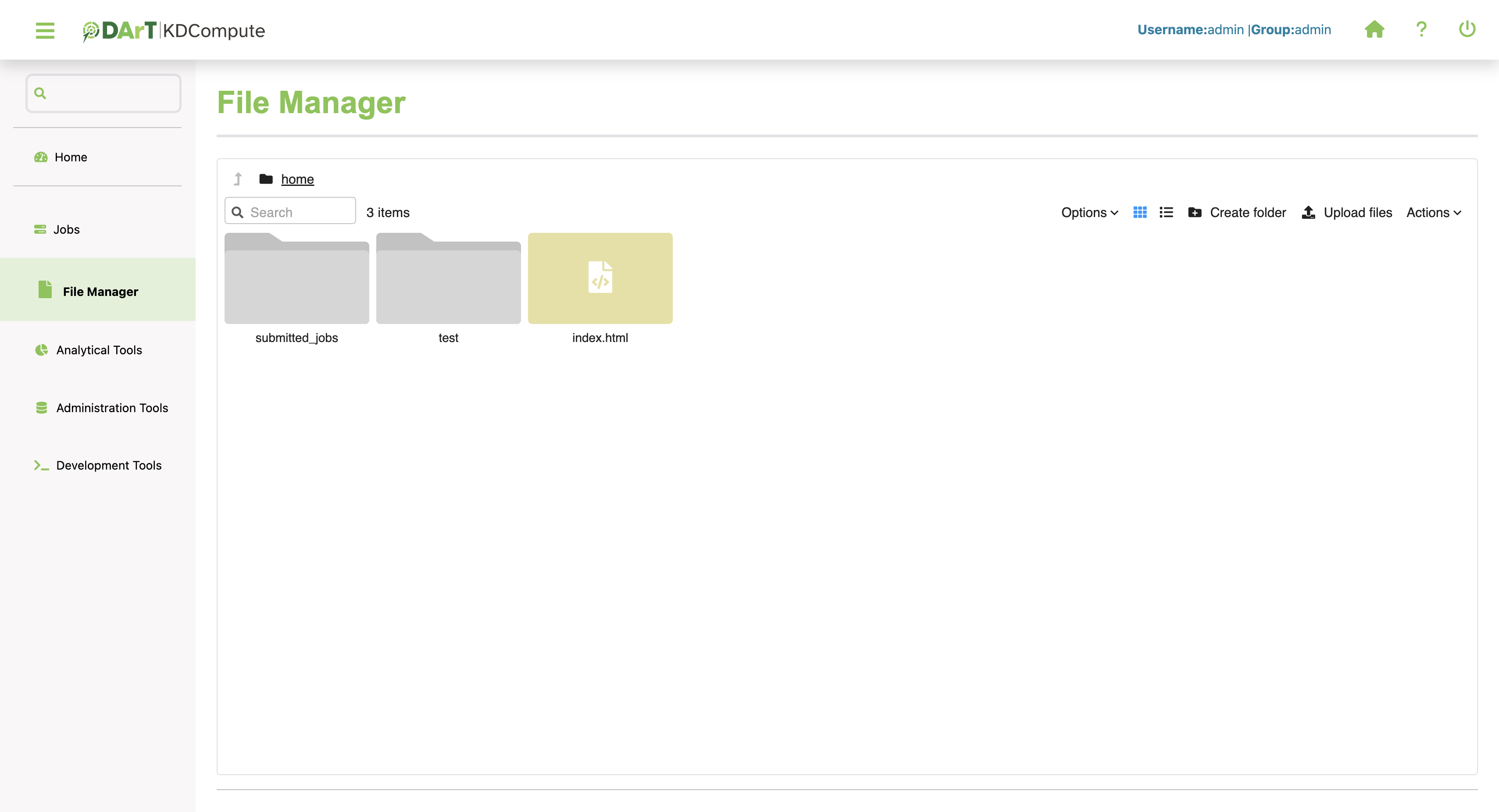
Operations available with the File Manager are:
Option |
Description |
|---|---|
Upload |
Copy files from your workstation to the webserver |
Download |
Copy files from the webserver to your workstation |
Copy/Paste |
Copy either a folder or file from one location to allow pasting to another location |
Rename |
Either a folder or file can be renamed |
Delete |
Files and folders can be deleted, excluding system folders. |
Output generated by a KDCompute algorithm is stored within subfolders of the submitted_jobs folder. When a job has completed any output files can be downloaded to your local workstation.
Upload File(s)
Files needed by an algorithm must first be uploaded to the server for processing. The following steps outline how to upload a file to KDCompute:
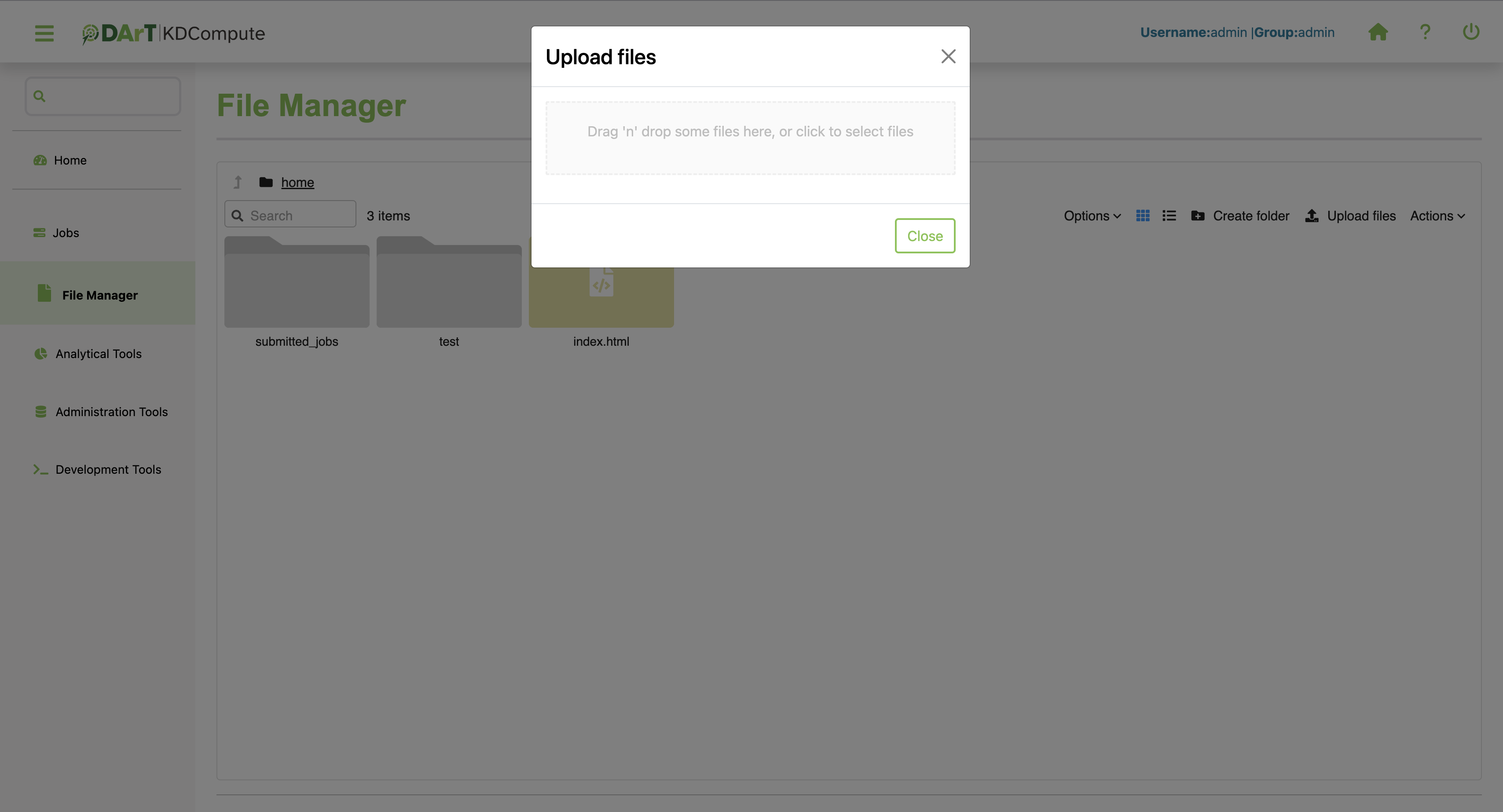
Step |
Action |
|---|---|
1 |
Select File Manager from the sidebar. |
2 |
Click on the Upload files button located at the top right corner. This will open a new window for selecting files. |
3 |
Choose your preferred upload method: either drag and drop the files into the box or click to select files from the local directory. |
4 |
When uploading multiple files, select them all at once and then proceed to repeat Step 3 for the chosen files. |
5 |
Monitor the progress bar located below the upload box to confirm the successful upload. |
Note
The larger files may take more time to upload.
Note
While one of your jobs is running or scheduled, files cannot be uploaded.
Download File
Output files produced by an algorithm can be downloaded from the server to your workstation when the job has completed. The following steps outline how to download a file in KDCompute:
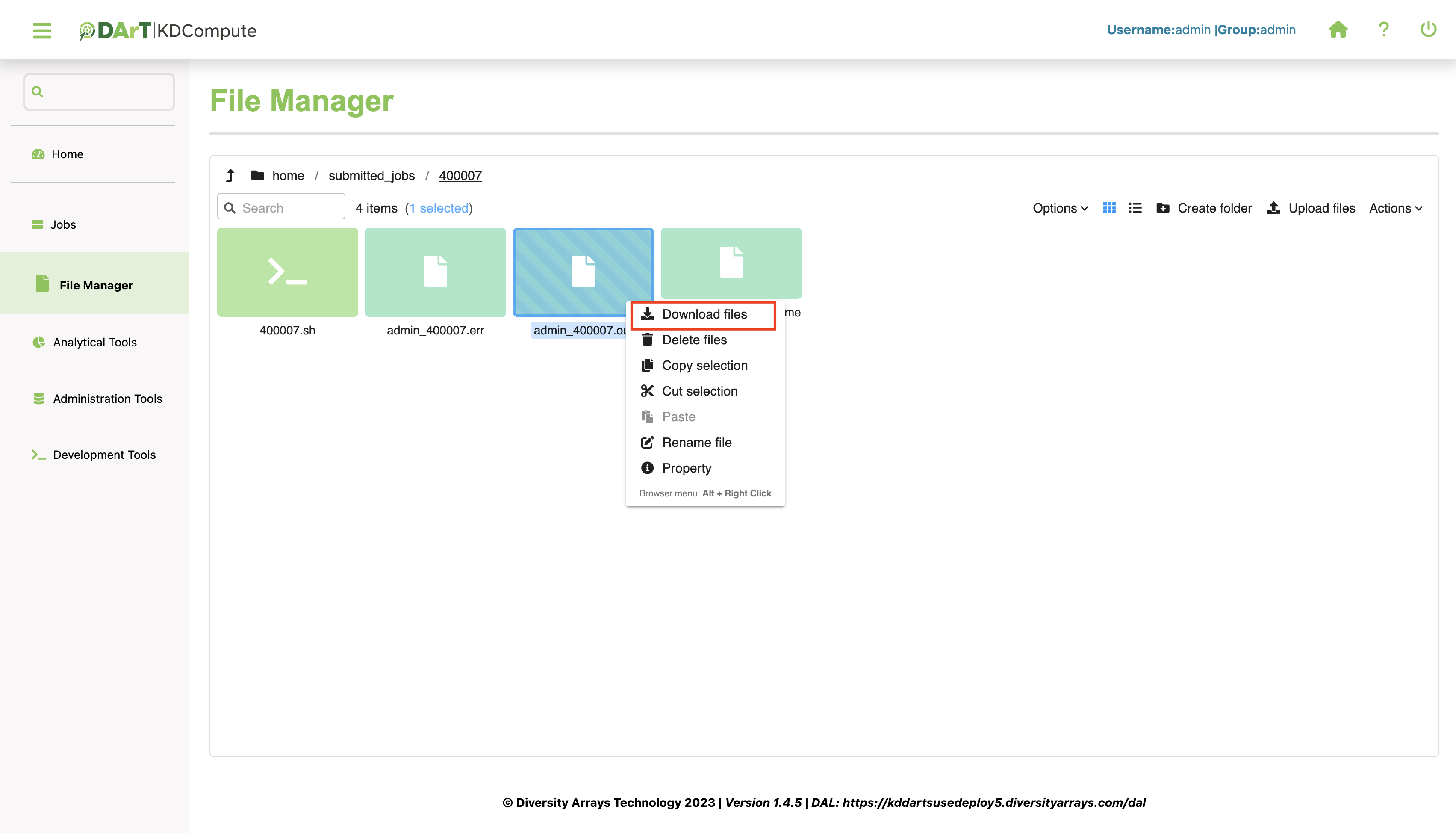
Step |
Action |
|---|---|
1 |
Navigate to the File Manager in the sidebar. |
2 |
Select or highlight the file, then right click. This action will prompt a menu for further options. |
3 |
Choose the Download files option from the menu and select a download location. This will initiate the download process. |
4 |
Repeat these steps for each required file produced by the job. |
Note
While a job is in progress or scheduled, file downloads are temporarily unavailable.
Delete Files or Folders
Files and folders may be deleted from the KDCompute web server when no longer needed. To delete a file or folder:
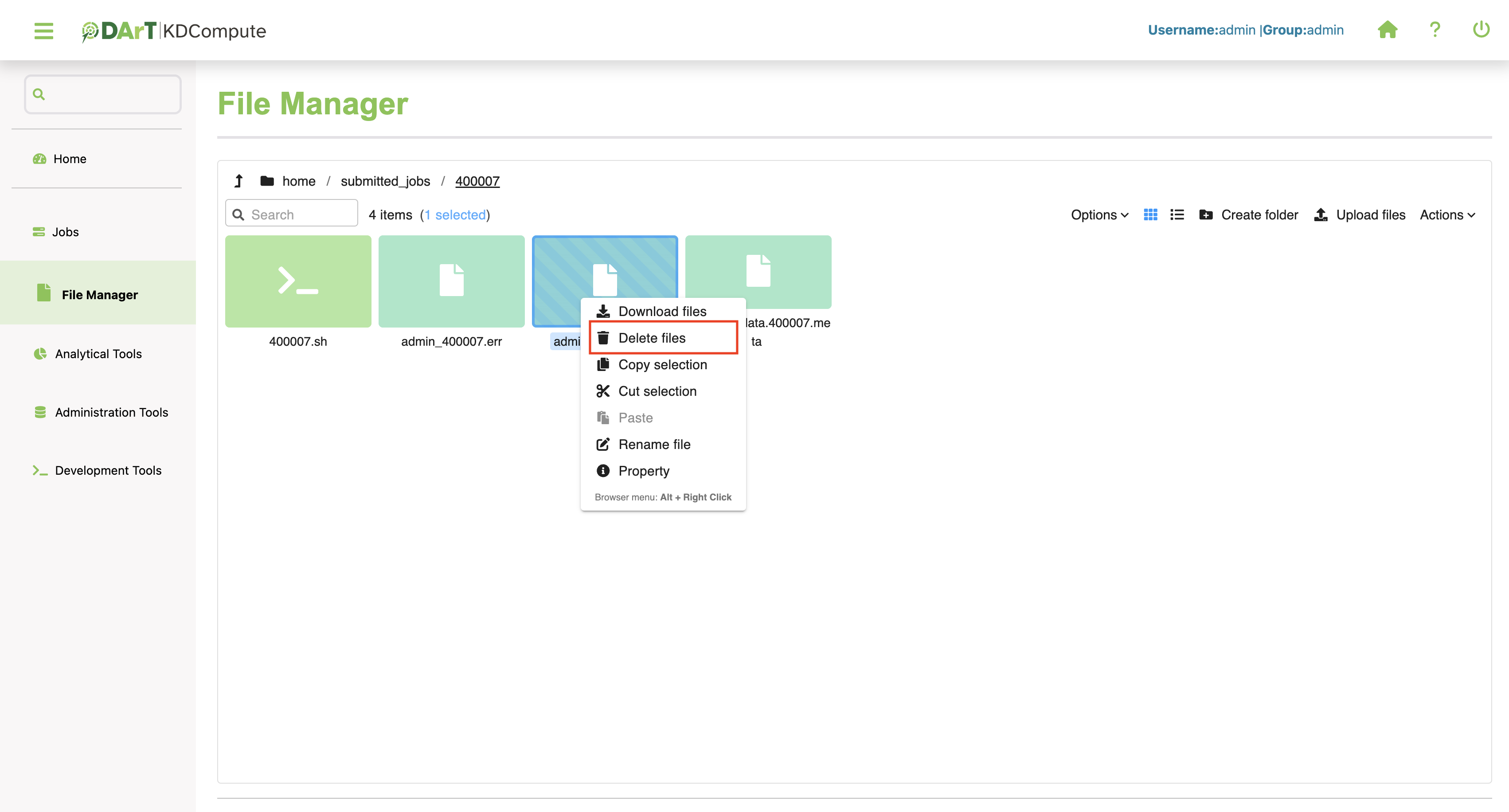
Step |
Action |
|---|---|
1 |
Navigate to the File Manager in the sidebar. |
2 |
Select or highlight the file, then right click. This action will prompt a menu for further options. |
3 |
Choose the Delete files option from the menu. A confirmation will be displayed before the file/folder is removed. Confirm to perform the deletion or cancel to stop the operation. |
Note
No recovery option is available, and it is not possible to delete system folders.
Note
During the execution or scheduling of a job, the file deletion is not permitted.
Algorithms
Algorithms within KDCompute are essentially ‘programs’ written to undertake specific tasks, such as data analysis, data conversion and manipulation and data upload/download. Tasks of this nature are potentially long running and process intensive, especially when dealing with large data sets. This is the processing role KDCompute is designed to cater for.
Role |
Description |
|---|---|
Technical User |
Develops algorithms as user needs require to perform specified analytical tasks and describes how to use their algorithms. |
Analyst User |
The consumer of algorithms, not necessarily the creator, and describes how to process algorithms. |
KDCompute provides an environment to control, execute and manage these algorithms for multiple users accessing the same KDDart repository.
Note
This help is directed towards the Analyst User, consumer of algorithms and describes how to process algorithms. For the Technical User, additional guidance for creating algorithms is provided separately.
Note: This help is generic and highlights some of the possibilites with algorithms. Any specific help required to use an algorithm must be produced by the ‘Technical User’ who authored or created the algorithm.
The Algorithm Window
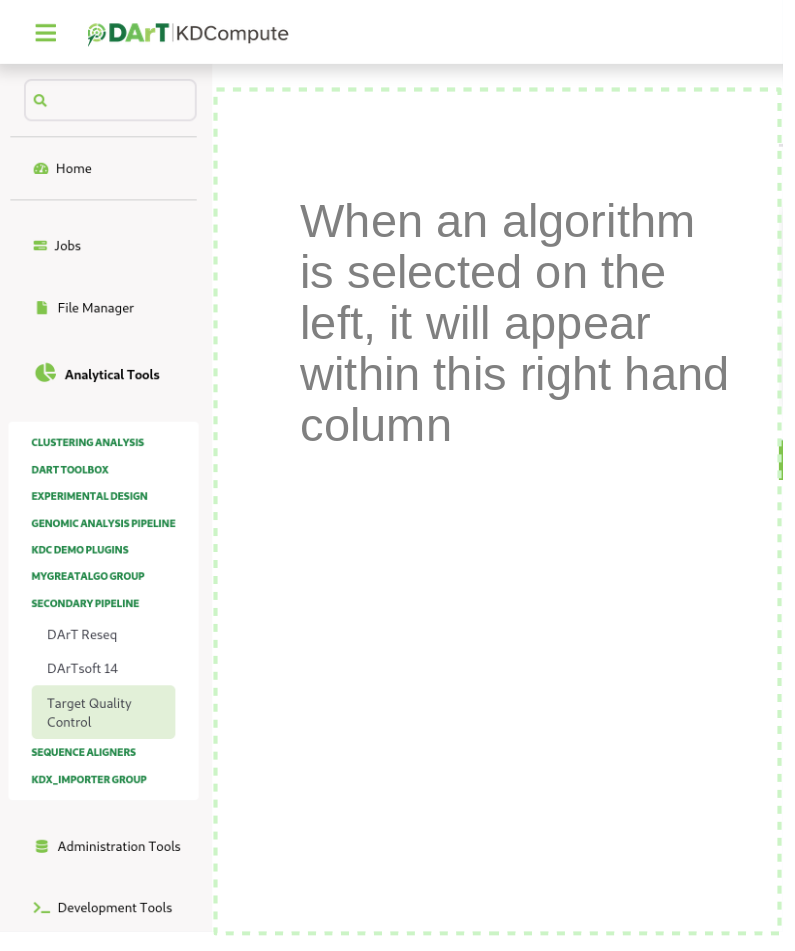
The Analytical Tools window
Select the Analytical Tools link which will display an algorithm window similar to the illustration.
In this example the algorithm list displays the algorithm groups under which the algorithms are placed. When a group is selected the display expands to show the available algorithms.
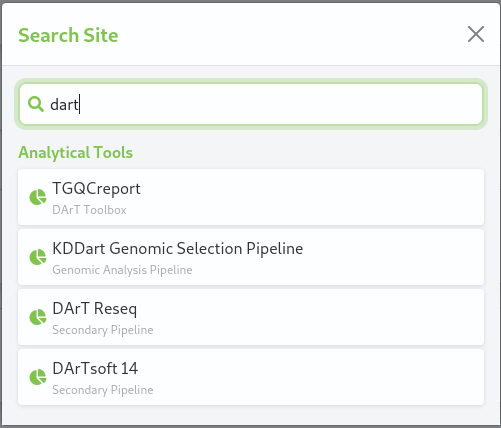
Algorithm search result
Entering the name, or partial name, in the search field will display algorithms matching the criteria, irrespective of their group.
In the adjacent example the text ‘marker’ has been entered in the search field and those matching algorithms are displayed below. Two are with in the Import/Export Marker Data group and one within the Simple group. The algorithms may be selected and they will display to the right of the list.
Preparation
Depending upon the algorithm requirements some preliminary tasks may need to be performed before the algorithm is executed. Some of these tasks may simply be the completion of the input form.
Algorithms may require data file(s) to be loaded for processing. For example if the algorithm requires input files, such as a file for upload to KDDart, the files must first be uploaded to the web server using the File Manager (see Upload File(s)).
Once any dependencies have been met the algorithm can be submitted for processing.
Simple Example Algorithm
The following example shows a simple algorithm. The ‘simplicity’ is within the options for algorithm construction, however it serves purpose of introducing the algorithm window.
The display shows details about the algorithm, any help text, version, author and date.
Below the descriptive information are any input fields to enter data, select files and provide any necessary information that has been programmed to enable processing.
The submit button will execute the algorithm if all validation is passed (eg all mandatory fields are completed). Once submitted the job will be scheduled, then executed. Scheduling and any delay is dependent upon activity on the KDCompute server.
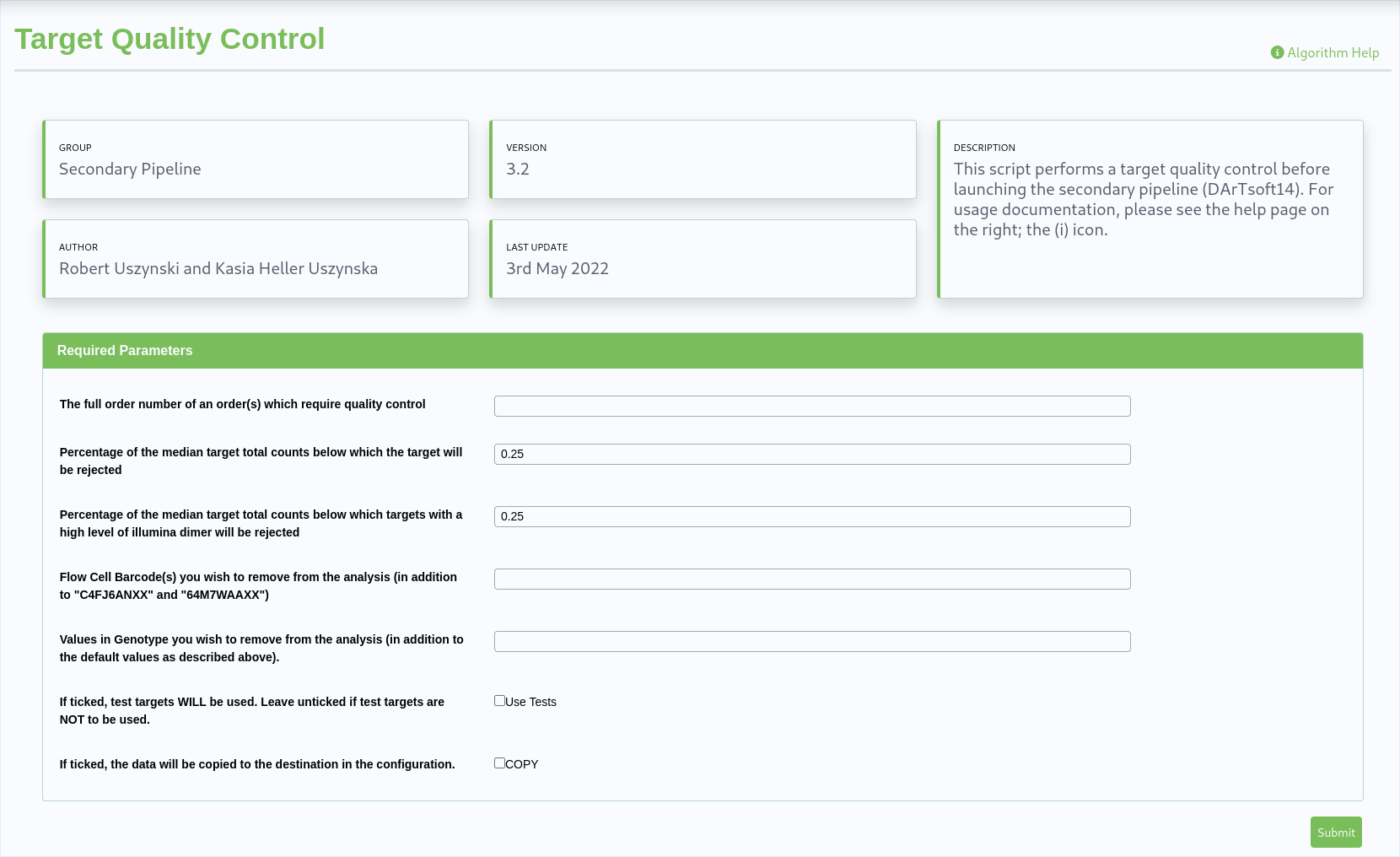
A simple algorithm example
Example Import Marker Data
For this example the ‘Import Marker Data’ algorithm has been selected and the input fields are displayed. (Note: The window image has been cropped for brevity.)
Depending upon the detail provided by the constructor of the algorithm, a description of the algorithm and any advisory messages will be displayed abov the input fields.
The example show fields requiring entry or selection, such as the ‘Marker Data Management Id’ drop down list.
The ‘Select a File’ button allows an input file to be selected from the KDCompute web server. Beforehand the ‘Marker Data File’ must have been uploaded to the KDCompute server.
If provided, tool tips will display when the mouse cursor is hovered over a field.
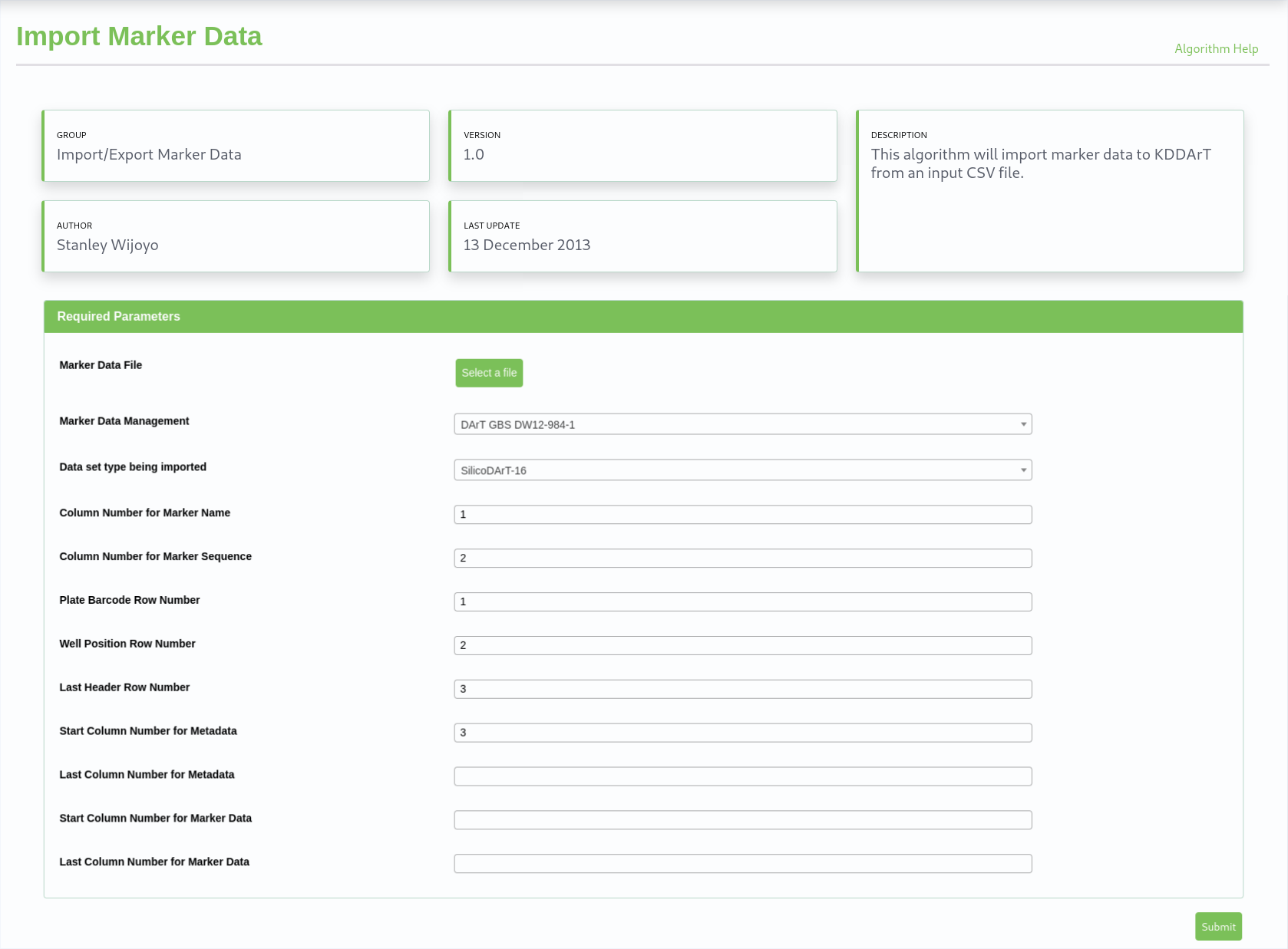
KDCompute - Import Marker algorithm example
(Image compressed for illustration)
Once all required fields are completed select the Submit button to schedule the job for processing.
A message will display to indicate successful submission of the algorithm.
When submission is unsuccessful due to errors, e.g. omitted fields etc., messages will appear at the offending fields.
Example Export Marker Data
The ‘Export Marker Data’ algorithm has been selected in the next example.
Please Note: This algorithm is shown to illustrate a more complex interface. It is not intended as the help for Export Marker and also may not be the current interface of the algorithm.
This is an example shows a more complicated ‘template’ based algorithm which provides the ‘technical user’ more development options than with ‘simple’ dynamic forms as shown in the simple algorithm example above.
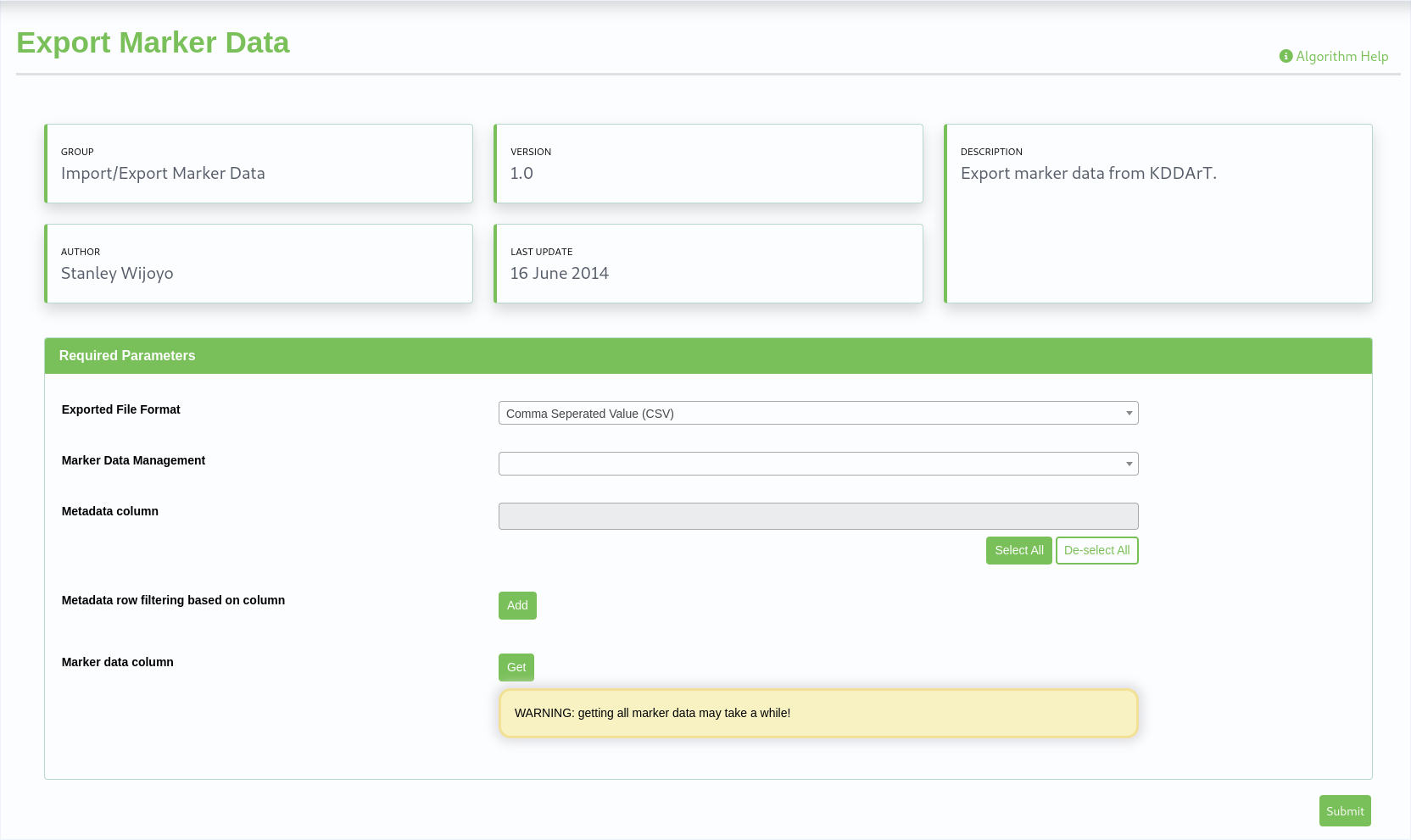
KDCompute - Export Marker Data algorithm example
(Image compressed for illustration)
On the form above the Analysis Group Id has already been selected from the drop down list which causes the Metadata column and the Marker data columns to populate.
To select all columns, for either list box, select the first row in the drop down, scroll to the end and shift select the last entry (note: ‘Ctrl A’ does not work for select all).

Waiting for data message
The waiting for data message appears where the algorithm is waiting for the user to make a selection.
Once all selections and input is complete select the submit button schedule the job for processing.
Filter Construction
When available filtering options allow data to be limited to specific fields (ie columns) of data.
This example illustrates filtering at ‘Metadata row filtering based on column:’ in the algorithm shown above.
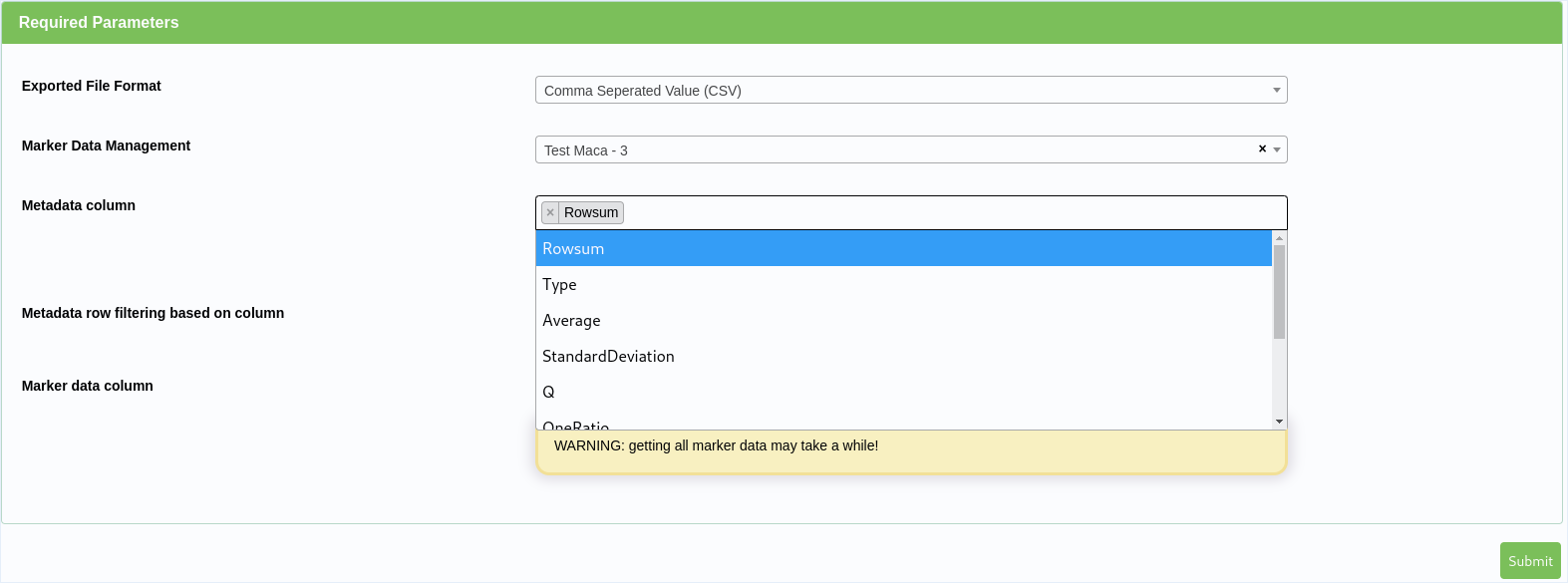
Select Metadata Column
At the ‘Select a Metadata column’ a single column may be selected to use with the first filter argument.
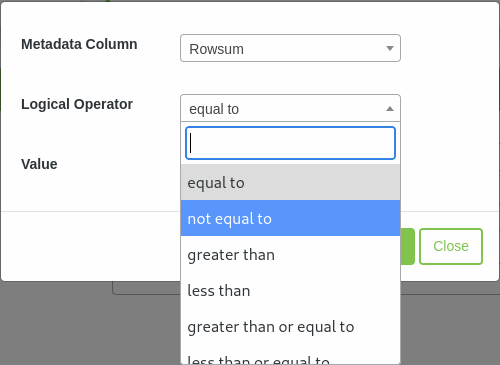
Select Logical Operator
The next field to select is the logical operator.
Once selected a value needs to be entered then select the Add filter button.
This will complete the first filter which is illustrated next.
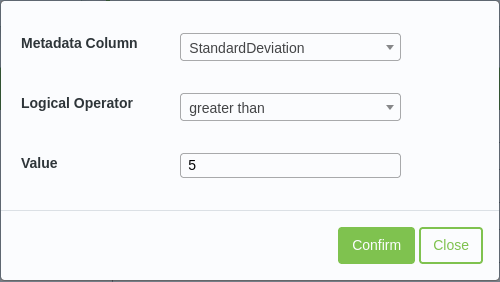
The metadata row filtering
with a single filter added
Filters appear in the greyed area below the ‘Selected Filter’ heading.
Further filters can be added and removed as needed, by selecting the ‘remove’ link adjacent to the filter.
Note: In this version of KDCompute notification will not be provided beforehand if you have selected Metadata columns that are unavailable.
They will not appear in the output file. Therefore it is better to select all Metadata columns for exporting and if needed discard those columns that are not required in the ensuing file (e.g. using Excel).
Technical Topics
Running KDCompute in the Virtual Machine
KDCompute is available using a pre-installed and configured Virtual Machine (VM). The following instructions are provided to help you get started. Note: In the following examples substitute yourdomainname with the appropriate domain name for your installation of KDDart (eg diversityarrys.com, seedsofdiscovery.org, etc).
Starting the Virtual Machine
The following table outlines the steps to start a virtual machine then start the KDCompute server application.
Step |
Action |
|---|---|
1 |
On The VM computer: start the Virtual Machine server and login (see instructions for login/password supplied with the VM). |
2 |
Start the terminal application. |
3 |
Check the VM’s IP address by entering the following command (you will be prompted for the password): |
4 |
Note down the IP address of the virtual machine. |
5 |
In the terminal change directory and enter the command to start the VM server as follows: |
6 |
Leave this application running. |
Preparing Your Local Client Computer
Each time the VM is restarted or moved to another host computer the ‘client’ computer, which is to access the VM, must have the following change made to that machine’s hosts file.
The following steps describe how to change the hosts file:
Step |
Action |
|---|---|
1 |
Edit the hosts file (/etc/hosts) located on the client computer and add a hostname. |
2 |
The following messages will appear indicating the server is running successfully: |
3 |
From the browser on the client computer and enter the following URL: |
KDCompute requires a connection to the Data Access Layer (DAL).
The DAL base path can be changed in environment/development.yml.
Replace http://kdc.yourdomainname/dal with your DAL URL.
An online server is http://kdc.yourdomainname/dal to test it.